Touch interfaces · OEM engineering guide
How Many Touch Points Does Your Product Need?
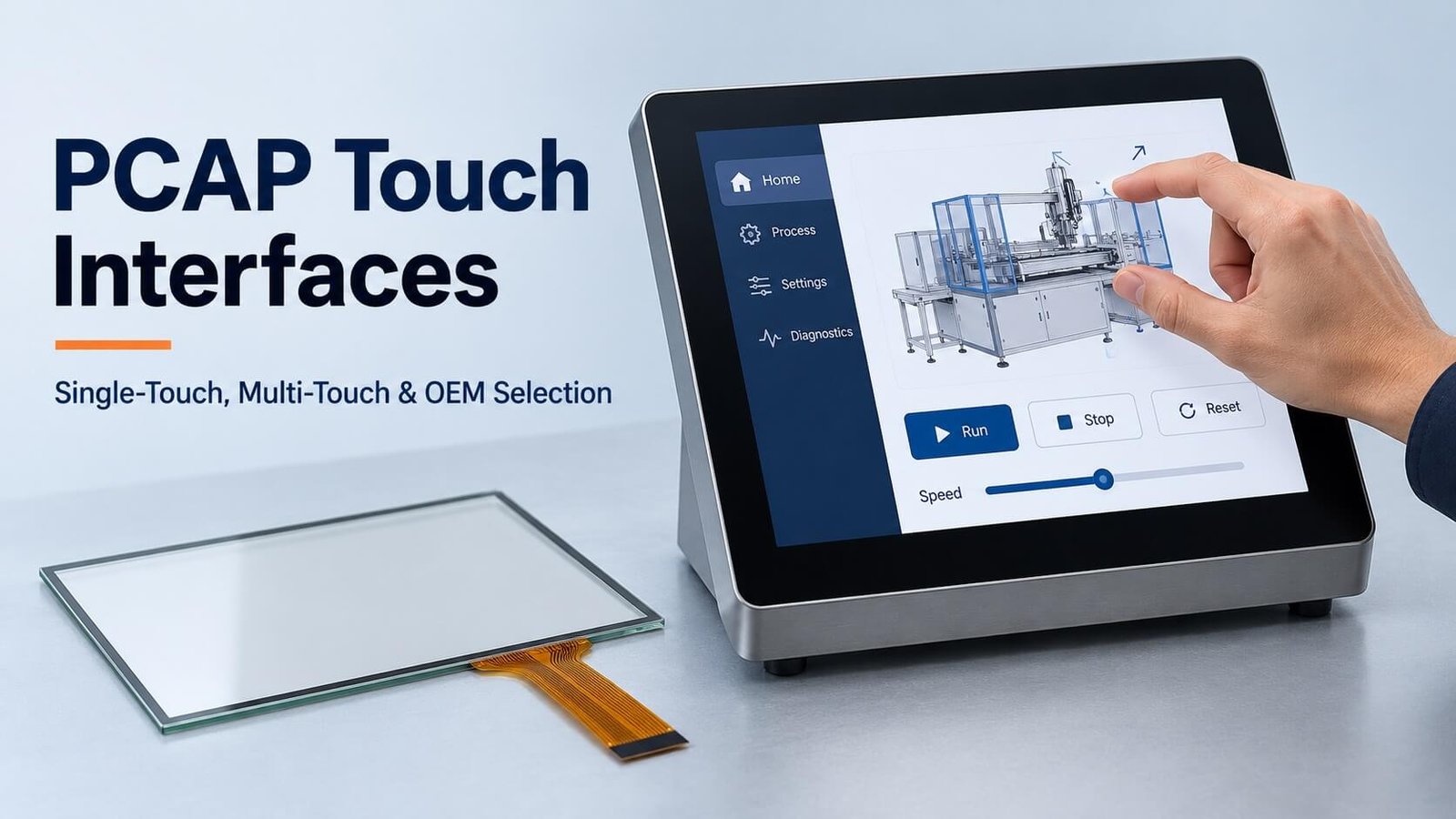
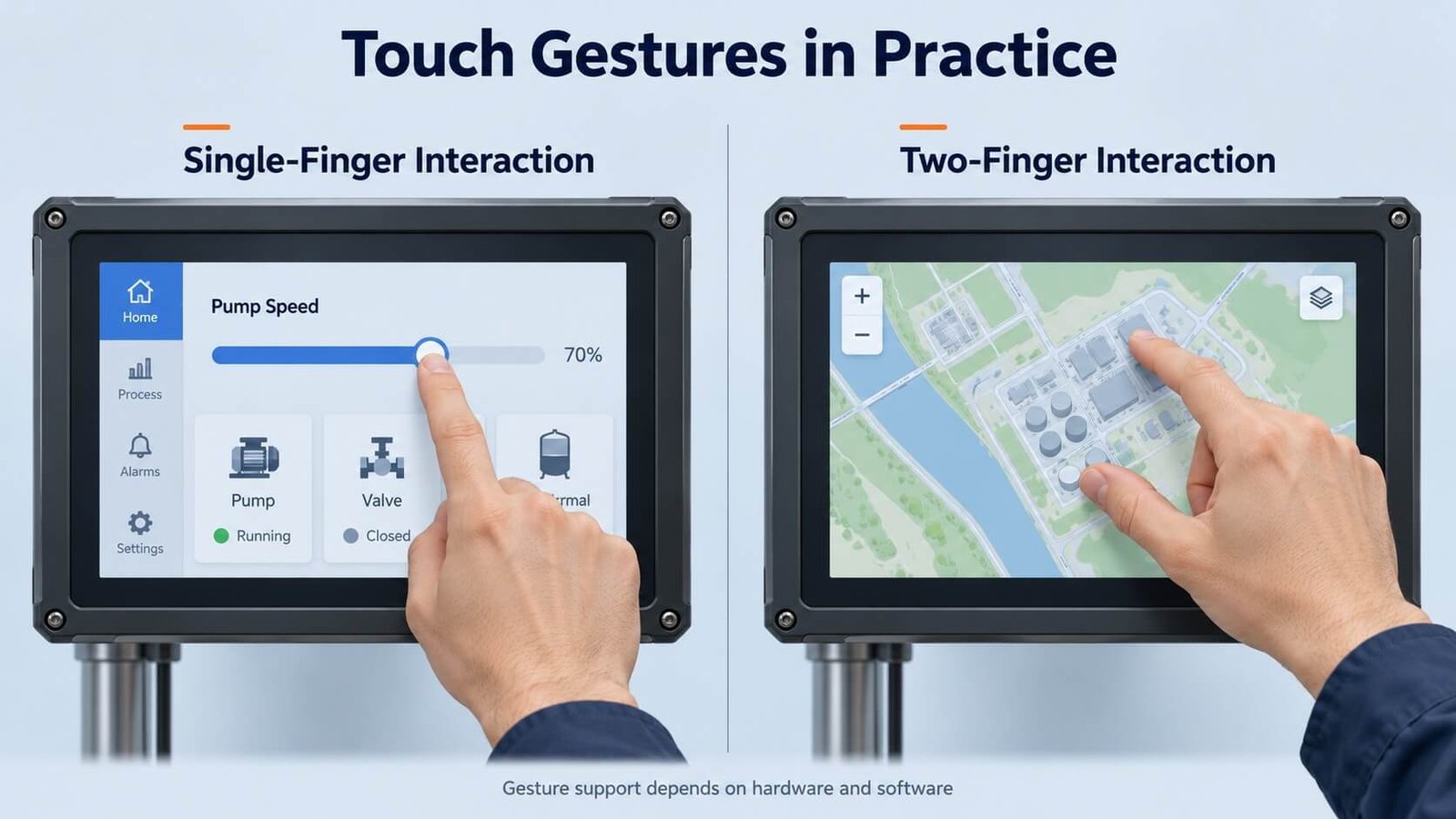
Choose PCAP touch capability around the user’s task: one tracked contact can support tapping, swiping and dragging; two contacts can support pinch and rotation; more contacts can support shared interaction when the software also supports it.
Touch count, display resolution and icon design are separate requirements. DisplayMan helps review the sensor, cover glass, controller and display assembly together, so the specification matches the interface your users actually need.
1. What Is a PCAP User Interface?
A projected capacitive (PCAP) touch system detects changes in capacitance associated with a finger or other supported input object. The controller processes sensor measurements and reports contacts or supported gestures to the host. The application turns those inputs into actions such as selecting an icon, dragging a slider or zooming a drawing.
Three elements work together: sensor and cover glass, touch controller and firmware, and host software. A touch panel alone does not determine the complete user experience. Interface compatibility, contact tracking, software gesture handling and mechanical installation all matter.
The sensor can use different glass or film constructions. PCAP does not always require electrodes on two separate glass layers. Select the construction around optical performance, dimensions, cover thickness, environment and manufacturing requirements.
2. Icon-Based Controls: Keep Common Actions Easy to Find
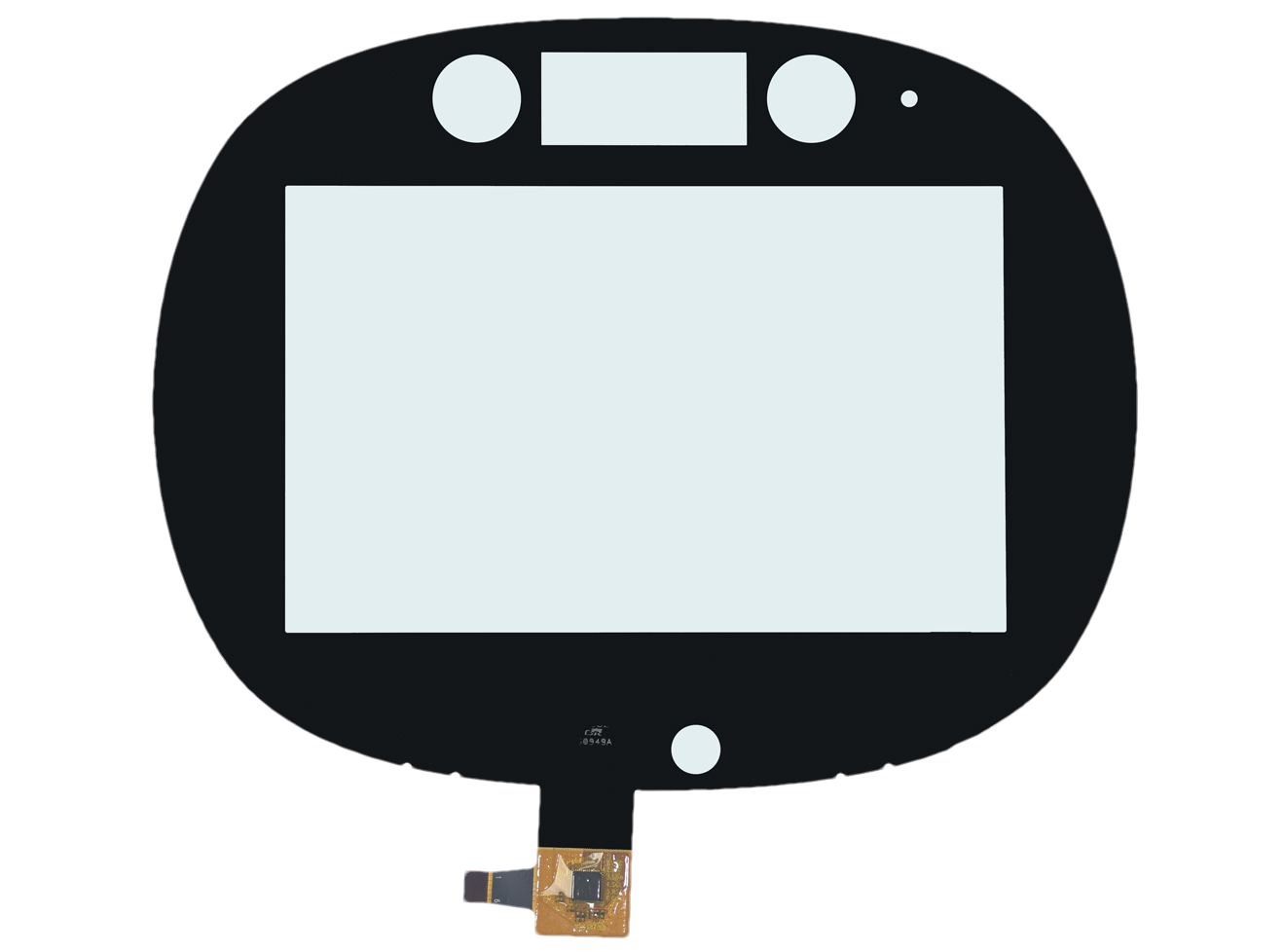
An icon-based interface represents actions with recognizable symbols: home, settings, temperature, payment or navigation, for example. Icons can be used with single-touch, dual-touch or multi-touch hardware. Their visual detail does not establish the number of contacts the sensor can track.
Keep frequently used actions visible, group related functions and use short text labels when a symbol could be misunderstood. Include clear feedback for a registered touch, a pending command and an unavailable action. A control that looks enabled but does not respond creates uncertainty even if the touch sensor works correctly.
For industrial equipment, a simple button-based layout can be more effective than a gesture-heavy interface. Do not hide essential controls behind an undocumented swipe. Keep destructive or consequential commands away from casual navigation and consider a confirmation step where appropriate.
A printed capacitive key panel with fixed icons is also different from a full XY touchscreen. Both may use capacitive sensing, but their sensing layouts and reported inputs are not interchangeable.
3. Single-Touch: Tapping, Swiping, Dragging and Double-Tapping
Single-touch means that the configured system reports one contact at a time. It does not mean the display must use low-resolution graphics or that the user can only tap.
A single tracked contact moving over time can support a swipe, scroll or drag. Two consecutive taps can support a double-tap. Recognition depends on the controller features or host software, including thresholds for movement, timing and release.
Useful applications include menu navigation, numerical entry, appliance controls, equipment settings and straightforward self-service interfaces. A calculator or virtual keyboard does not by itself prove that the underlying hardware is single-touch; multi-touch hardware can run the same interface.
The key limitation is simultaneous input. A one-contact report cannot supply two independently tracked finger positions for a true two-finger pinch or rotation. Test what happens when a second finger arrives: the system should behave predictably rather than jump between contacts or trigger unintended actions.
4. Dual-Touch: Two Independently Tracked Contacts
Dual-touch systems can report two simultaneous contacts. With suitable tracking and software, this supports pinch-to-zoom, two-finger rotation or two independently operated controls.
The important requirement is not simply detecting that two fingers are present. The system must track their positions and maintain useful contact identities as they move. Check close fingers, crossing paths, simultaneous touch-down and a second finger added during an existing drag.
A double-tap is a sequence over time, so it does not inherently require dual-touch. Likewise, a virtual keyboard’s behavior depends on software support rather than an automatic relationship with medium-resolution icons.
Specify the two-contact behavior your application needs. “Two touch points” on a quotation is incomplete if the real task is a stable pinch gesture near the edge of a thick cover lens.
5. Multi-Touch: Match Contact Count to Real Use
Multi-touch generally describes support for multiple simultaneous contacts; dual-touch is a two-contact case. Products may be specified for more contacts, but the number must be confirmed for the selected controller, firmware, interface and host configuration.
Useful applications include collaborative interactive panels, multi-user tables, drawing, on-screen keyboards and interfaces with simultaneous controls. A large panel may need several users to interact at once, while a small equipment interface may have no practical need for a high contact count.
Check the supported simultaneous report count, contact separation, edge tracking, latency and application handling. Ten reported contacts do not automatically mean ten people can use the system comfortably. Palm rejection and large-object rejection are separate capabilities that need explicit validation.
More simultaneous input creates additional data and software considerations, but it does not always require a powerful computer. Performance depends on reporting rate, filtering, application workload and rendering. Test the finished system under its intended workload.
6. Touch Count, Touch Accuracy and Display Resolution Are Different
| Specification | What it describes | What it does not guarantee |
|---|---|---|
| Display resolution | Addressable image pixels | Touch accuracy or simultaneous contact count |
| Touch coordinate range | Numerical coordinate output | Physical accuracy to the same number of divisions |
| Sensor geometry | Electrode layout and sensing area | Final performance without controller tuning |
| Contact count | Simultaneous contacts the system reports | Supported gestures in the application |
| Touch accuracy | Position error under specified conditions | Behavior with every glove, water condition or cover stack |
| Report rate and latency | Update timing and response delay | Smooth rendering if the host application is overloaded |
A high-resolution display can run a single-touch interface. A lower-resolution display can use multi-touch hardware. Choose each requirement separately, then verify that the combination supports the actual tasks.
7. Gesture Requirements: Define the Action, Not Just the Name
| Interaction | Contacts normally required | Specify and test |
|---|---|---|
| Tap | One | Touch-down/release behavior, target size and feedback |
| Double-tap | One, sequentially | Interval, movement allowance and conflict with a single tap |
| Swipe or scroll | One can be sufficient | Direction, distance, speed and edge behavior |
| Drag or slider | One | Continuous tracking, release behavior and bounds |
| Pinch-to-zoom | Two | Stable identities, minimum spacing and application support |
| Two-finger rotation | Two | Rotation threshold and accidental gesture suppression |
| Collaborative input | Multiple | Required active users, contacts and software routing |
A controller may report coordinates while the operating system recognizes gestures, or it may expose built-in gesture features. Confirm where each function is implemented. An I²C coordinate stream is not automatically a ready-to-use USB HID touchscreen, and a USB connection alone does not prove that the host application supports every gesture.
Microchip’s touch-surface documentation provides examples of single- and multi-finger gesture support. These illustrate available implementations rather than a feature guarantee for every PCAP panel.
8. Gloves, Water, Cover Glass and Electrical Noise
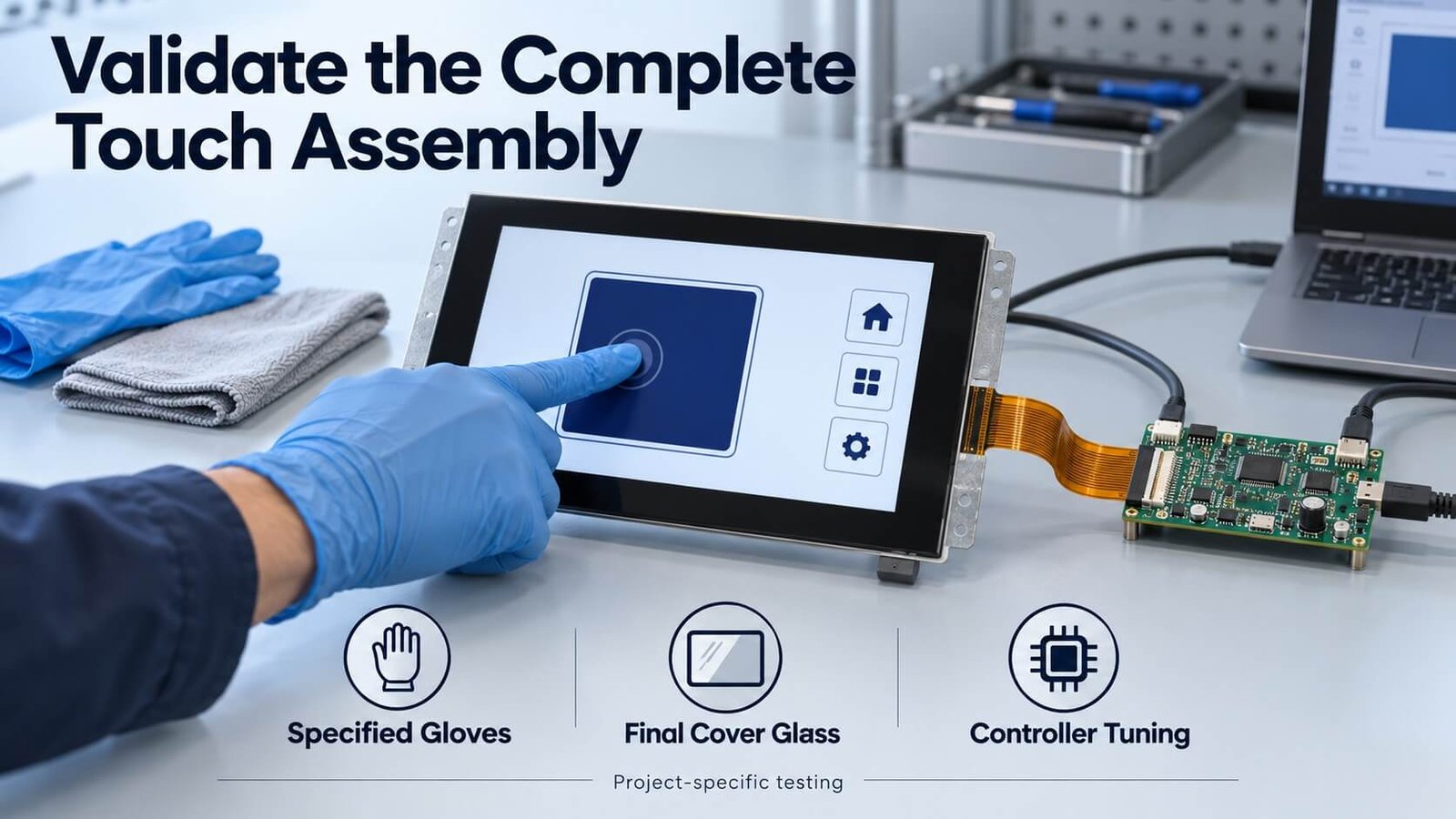
Gloves: identify the actual glove material, thickness, fit and number of layers. Validate light taps, drags and edge operation using the intended glove. Bare-finger sensitivity does not establish glove performance.
Water: droplets, a wet finger, condensation and flowing water are different conditions. Decide whether the product must operate when wet or reject water while suspending touch. Confirm recovery after wiping or drying and check for false activation.
Cover glass: thickness, ink steps, coatings, bonding and air gaps affect integration. Use the final sensor-to-display stack when tuning. Changing the lens after approval can change performance.
Noise: evaluate the LCD, backlight PWM, power supply, charger where applicable, cables and grounding as a system. Repeat tests with relevant display patterns and brightness settings. Excessive filtering can reduce false touches while increasing latency, so assess the trade-off.
For the mechanical stack, see Optical Bonding vs Air Gap vs Zero Bonding. For the touch and glass assembly, review custom capacitive touch panels.
9. Applications: Industrial Controls, Kiosks and Interactive Panels
Industrial and equipment controls
Prioritize repeatable operation, clear status feedback and suitable target spacing. Test the actual mounting, power system, glove and cleaning conditions. PCAP’s glass front can support an easy-to-clean design, but chemical resistance belongs to the complete glass, coating, print, adhesive and sealing specification.
Kiosks and point-of-sale interfaces
Keep the primary task obvious: select, confirm, pay or navigate. Large clear controls and predictable responses are usually more useful than complex gestures. Check accidental second contacts and the behavior of hands resting near the display edge.
Interactive flat panels and shared workspaces
Multi-user drawing and collaboration require more than a high contact count. Verify simultaneous tracking, palm handling, software permissions and how the application assigns input to different tools. Compare the complete interactive flat panel configuration.
Transparent display installations
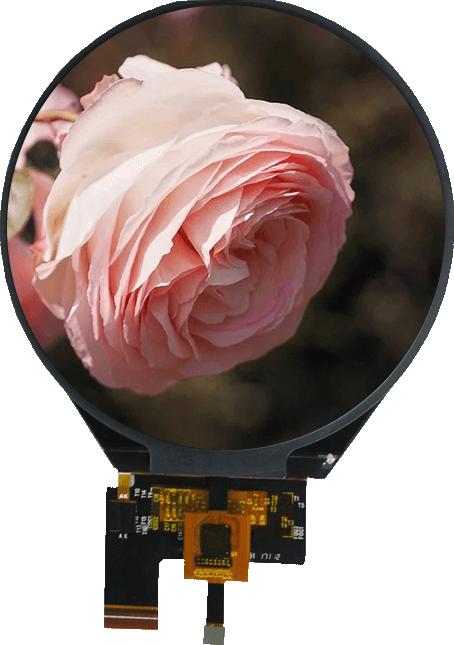
A transparent display adds background visibility, reflections and content-contrast considerations. Touch targets should remain readable against the real scene behind the screen. Confirm touch feasibility, sensor routing, cover structure and mounting for the selected transparent display; do not assume one touch overlay fits every transparent technology.
10. PCAP vs Resistive and Infrared Touch: Keep the Choice Practical
PCAP is a strong option for glass-front interfaces and multi-touch projects, but it is not universally the most accurate, durable or economical technology.
Resistive touch can be practical when pressure input, a non-conductive stylus or specific glove requirements drive selection. Infrared touch frames can be practical for larger displays; sunlight tolerance, obstruction behavior and installation depend on the actual design. Neither cost nor performance follows a universal ranking.
Compare the application against the selected product’s tested capability. Relevant product directions include resistive touch panels, infrared touch frames and touch-integrated TFT LCD displays.
11. OEM Requirements and Sample Approval Checklist
Send DisplayMan the display size and model, sensor active area, cover-glass outline and thickness, drawings, interface, host operating system, quantity and application background. Identify the necessary gestures and number of simultaneous contacts instead of requesting “high sensitivity” alone.
| Review area | Information or sample checks |
|---|---|
| User task | Tap-only menus, sliders, pinch, drawing or shared interaction |
| Input conditions | Bare finger, specified gloves, wet operation or supported stylus |
| Mechanical stack | Lens, sensor, bonding, display, bezel, cable exit and mounting |
| Controller integration | Protocol, connector, power, firmware, drivers and host support |
| Optical result | Readability, reflections, haze, visible sensor features and parallax |
| Electrical behavior | False touches, missed touches and latency with actual system noise |
| Functional coverage | Corners, edges, drags, simultaneous contacts and touch release |
| Reliability | Agreed temperature, cleaning, humidity and mechanical test conditions |
| Production approval | Approved drawings, firmware version, acceptance limits and sample record |
For a new project, DisplayMan can review the touch panel, cover glass and display assembly together. Confirm the supply scope: a touch component, a touch-screen TFT LCD module, or a complete terminal. UI software and application development should be defined separately from the hardware enquiry.
12. Frequently Asked Questions
Does single-touch mean low-resolution graphics?
No. Display resolution and supported touch count are separate specifications. Single-touch hardware can operate a high-resolution interface.
Can single-touch support swiping and double-tapping?
Yes, when the controller or host software recognizes the contact movement or tap sequence. Two-finger gestures need suitable simultaneous tracking.
Does multi-touch automatically include pinch-to-zoom?
No. The hardware must report suitable contacts, and the software must interpret them for the intended application.
Will any PCAP panel work through gloves or water?
No. Specify and validate the exact input and environmental conditions with the final cover stack and controller settings.
Do we need a complete terminal or only a touch panel?
Start with your existing system. If you already have a compatible display and host, a touch assembly may be sufficient. A complete terminal also includes computing, enclosure and integration requirements.
Explore Related Display Products
Choose a touch component, integrated display module or complete terminal according to your project scope.
Capacitive Touch Panels
Review sensor construction, cover glass, controller and input requirements.
Explore product options →Touch Screen TFT LCD Displays
Select the display and touch assembly together around your host system.
Explore product options →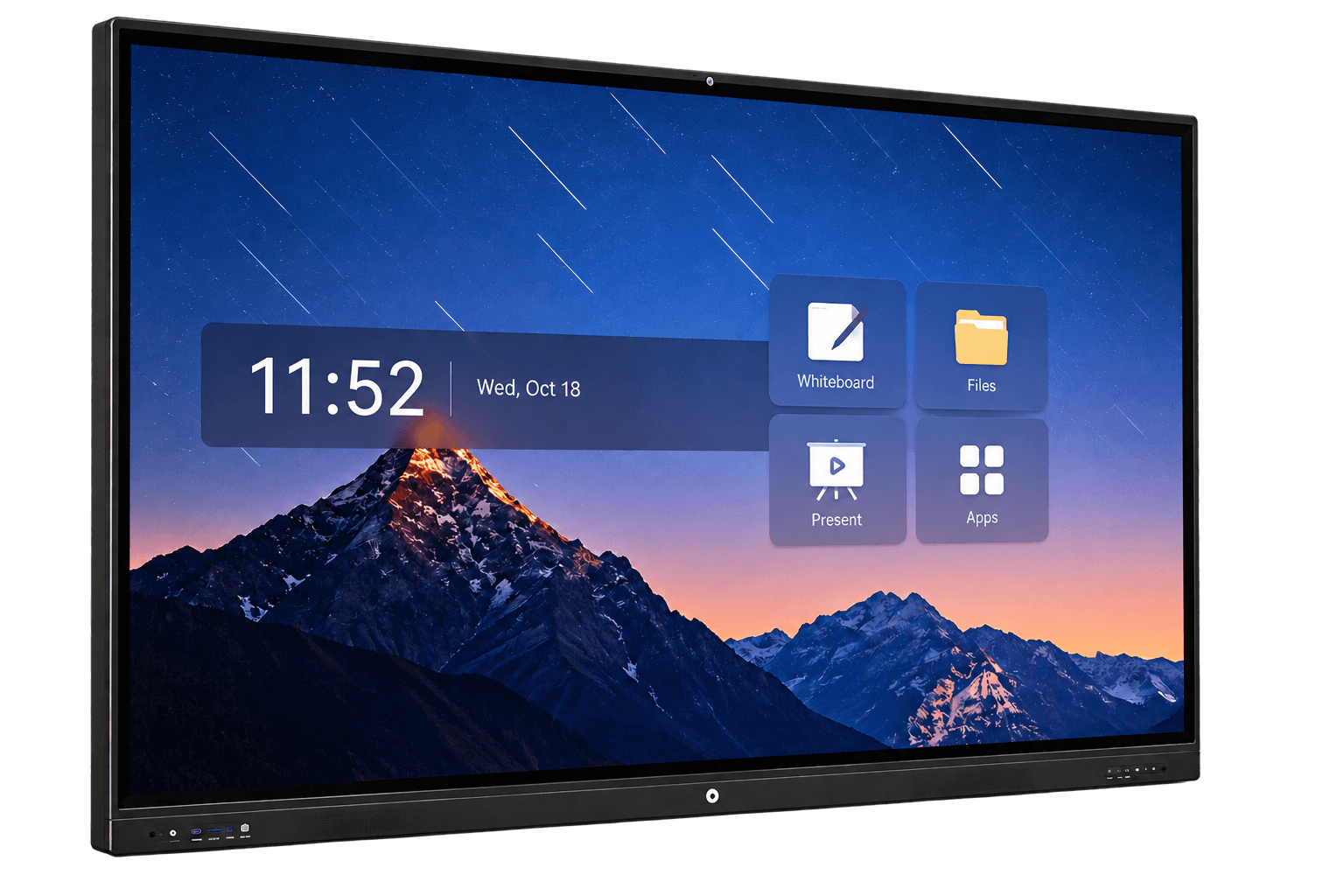
Interactive Flat Panels
Review complete large-format collaboration and terminal requirements; touch technology depends on configuration.
Explore product options →Project review
Review Your PCAP Touch Interface Requirements
Send your display model, dimensions, host system, required gestures, cover-glass structure, environment and quantity. DisplayMan can review the touch and display integration direction.
Prefer to open the enquiry form here?
Technical References and Further Reading
Microchip: 2D Touchpad and Surface Gestures · Microchip: Sensors and Touch
These references illustrate implementation options. Confirm the capabilities and operating limits of the selected sensor, controller and complete assembly.