Buying guide · SG07 · Floor-standing kiosks
Choose the Workflow Before Choosing the Hardware
The right floor-standing kiosk configuration starts with three decisions: what the user must do, where the unit will operate, and which software and peripherals must work together.
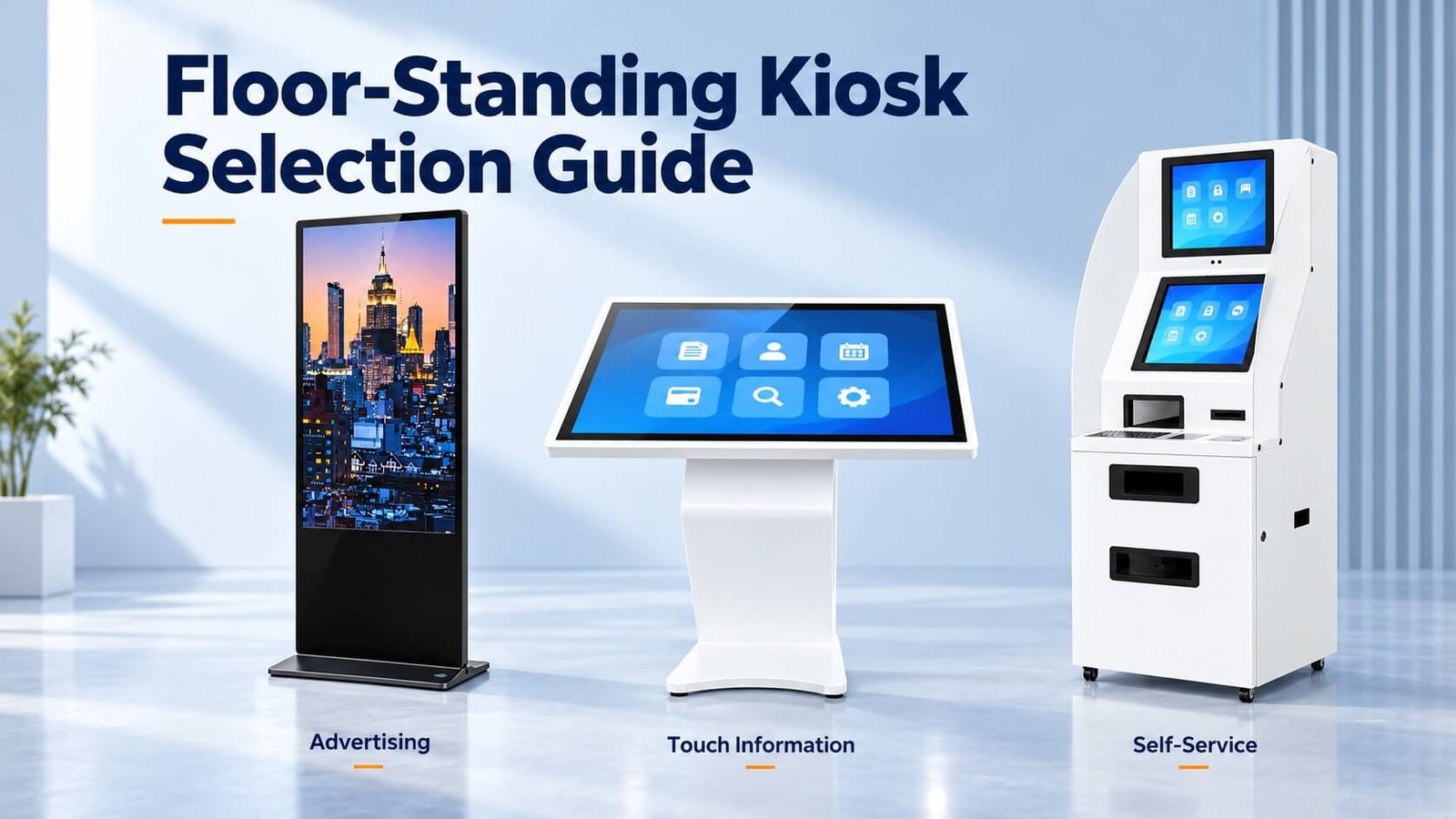
Choose a playback unit for advertising, a touch terminal for information queries, or a peripheral-equipped kiosk for a defined self-service workflow. DisplayMan can review the display, computing platform, enclosure and integration scope around those requirements before quotation.
This guide covers floor-standing hardware selection. It does not prescribe one processor, brightness level or protection rating for every location.
1. Start with the Kiosk’s Job: Playback, Interaction or Self-Service
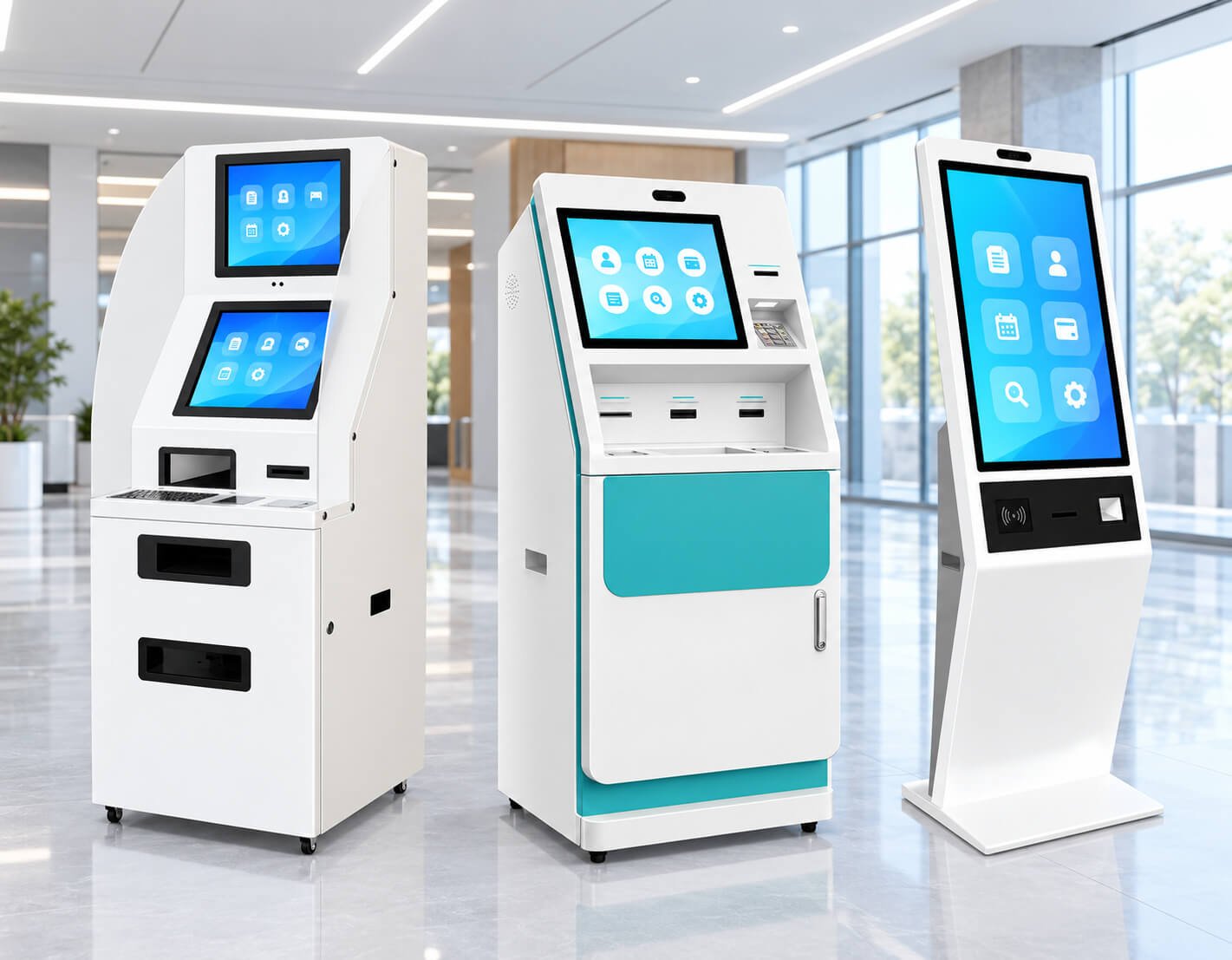
A floor-standing kiosk describes a physical format, not one fixed hardware configuration. Start with what the visitor needs to do and what must happen when the task fails.
| Kiosk type | Main job | Configuration priorities |
|---|---|---|
| Advertising and information playback | Show scheduled images, video or notices | Screen visibility, reliable playback, content updates and remote management |
| Interactive information kiosk | Let users search maps, products or information | Touch performance, application compatibility, response and user access |
| Peripheral-equipped self-service kiosk | Scan, print, read cards or complete a workflow | Peripheral drivers, power, software integration, service access and failure recovery |
Do not add a printer, camera or high-performance computer simply because a kiosk can accommodate one. Each option adds integration work, heat, power demand and maintenance. An advertising display may not need touch at all.
This guide focuses on floor-standing units. For another installation format, review wall-mounted touch terminals or commercial tablet all-in-one PCs. Conference and classroom displays belong to interactive flat panels.


2. Define Indoor, Window-Facing or Outdoor Installation
Indoor: confirm the actual ambient light, viewing position, ventilation and operating schedule. A shopping mall lobby and a dim museum gallery can need different brightness settings and content treatment.
Window-facing: a unit behind storefront glass is protected from direct rain, but may receive strong sunlight and substantial heat. Review reflections, solar loading, internal temperatures and nighttime dimming. Indoor placement does not remove these issues.
Outdoor: brightness is only one requirement. Review the complete enclosure, seals, cable entries, cooling, humidity, condensation, electrical installation and permitted operating conditions. Protection claims must apply to the quoted assembly, not just its front glass.
There is no single brightness value or IP rating that makes every kiosk suitable outdoors. Ask for specifications and evidence for the actual model and installation. For dedicated outdoor projects, start with Outdoor Touch Displays or Outdoor High Brightness Displays.
For related engineering boundaries, see High Brightness vs Normal Display and All-Weather Outdoor Signage Solution.
3. Choose Screen Size, Resolution and Orientation Together
Select size around the task, viewing distance, floor space and user reach. Common catalogue sizes can be a starting point, but a larger panel is not automatically easier to operate.
- Advertising playback: assess the smallest text and the farthest intended viewing position using real content.
- Interactive wayfinding: check both the overall map and the readability of labels at normal operating distance.
- Self-service: place the main controls, scanner and receipt outlet where intended users can reach them comfortably.
- Large portrait screens: keep essential controls within a suitable interaction zone rather than spreading them across the entire display.
Choose resolution after testing content. Full HD can be adequate for many interfaces; 4K may help detailed maps, fine graphics or large close-viewed content. It also changes decoding and rendering requirements. Neither resolution is a universal minimum for every kiosk size.
Confirm that the panel, mounting, cooling, operating system and application support the chosen orientation. Rotating the displayed image does not by itself approve a panel for portrait installation. Check viewing angles, reflections and touch-coordinate mapping in the final configuration.
Ask for useful brightness at the finished screen surface, including the quoted cover glass or touch assembly. Compare values under stated conditions rather than mixing bare-panel brightness with complete-product measurements.
4. Decide Whether Touch Is Needed, Then Select the Technology
Projected capacitive touch (PCAP) is often a practical choice for glass-front interactive terminals. Infrared touch may also suit selected large-format designs. Resistive touch and other approaches can be relevant for particular input requirements. Choose the exact implementation around the user’s task and environment.
| Touch requirement | What to specify | What to test |
|---|---|---|
| Tap and menu navigation | Target layout and required contact count | Missed touches, edges, release and accidental input |
| Pinch, rotate or shared interaction | Simultaneous contacts and host gesture support | Stable tracking with the actual application |
| Gloves | Material, thickness and fit | Taps, drags and edge operation with those gloves |
| Moisture exposure | Wet operation or safe rejection requirements | False touches, recovery and cleaning conditions |
| Heavy public use | Glass, mounting and enclosure requirements | Actual assembly durability and serviceability |
Do not select PCAP on a blanket promise of “10 points” or “under 5 ms.” Reported contact count, sensor response, operating-system processing and visible application response are different measures. Match the specification to the real interaction.
Infrared touch is not automatically immune to sunlight, dirt or obstruction. Likewise, surface acoustic wave touch should not be assumed waterproof: material on the surface can interfere with acoustic sensing. Review the selected product’s operating limits.
Read PCAP Touch Interfaces for contact count and gestures, or Optical Bonding vs Air Gap for the cover-to-display stack.
5. Select the Operating System and Computer Around the Software
Start with the application, CMS or browser workflow. Confirm the supported operating-system version, required drivers, peripheral SDKs, update policy and access permissions before choosing a processor.
Android: review the specific application build, media decoding, browser behavior, USB or serial support and system-management permissions. Android versions and board firmware are not interchangeable merely because the enclosure looks identical.
Windows: confirm application compatibility, licensing, peripheral drivers, background updates and recovery. A processor family name alone does not establish system performance or long-term availability.
Other platforms: Linux or a dedicated media-player platform may be appropriate when the software and support arrangement are defined. Confirm the complete integration scope rather than assuming every catalogue unit supports every system.
| Workload | Practical starting approach | Validation priority |
|---|---|---|
| Scheduled images and video | Media player with the required hardware decoding and CMS support | Actual codec, bitrate, resolution, rotation and playlists |
| Browser-based information | Platform supported by the target browser and web application | Page load, memory use, network loss and session reset |
| Local self-service application | Computer matching the application and peripheral requirements | Full workflow, driver compatibility and exception handling |
| 3D or AI processing | Platform selected from the specific graphics or inference workload | Actual model, software stack, latency and thermal behavior |
Intel Celeron, Core i3/i5/i7, ARM and AI platforms cover many different generations and performance levels. Do not use a brand tier as a substitute for testing the application. For recognition projects, distinguish local processing from a remote service and confirm the camera and software requirements.
6. Specify RAM, Storage, Network and Recovery
Choose memory from the operating system and real workload, including browser tabs, background services and content caching. The original planning ranges of 2–4 GB, 8 GB and 16 GB can describe possible configurations, but they are not reliable universal recommendations for basic, medium and advanced kiosks.
For storage, distinguish embedded flash, removable media and SSD options. Not every Android board supports an SSD. Allow capacity for the operating system, application, offline content, logs, updates and recovery space. Define storage endurance and replaceability where continuous writing matters.
Confirm Ethernet, Wi-Fi and any cellular requirement for the actual installation. A metal enclosure, poor signal location or restricted customer network can change connectivity. Decide what the kiosk should do without a connection: continue playback, show cached information, suspend a transaction or display a clear message.
Plan power-on behavior, automatic application launch, session timeout, watchdog functions if available and recovery after a supply interruption. A feature name on a brochure is not enough: demonstrate the intended recovery path without manual intervention where that is required.
7. Integrate Scanners, Printers, Readers and Cameras Early
For each peripheral, identify the exact model or an approved equivalent, the interface, power demand, driver or SDK and who owns the integration. Test it on the selected host system before freezing the enclosure.
- Scanner: confirm the barcode formats, presentation distance, phone-screen readability and physical scan window.
- Printer: confirm paper width, cutter, outlet, paper-roll capacity, replacement access and error handling.
- Card reader: define the actual credential and communication method; “card reader” does not specify compatibility.
- Camera and audio: confirm field of view, lighting, mounting, microphone and speaker requirements against the application.
- Payment equipment: agree the certified device, provider and integration responsibilities. A card-reader opening is not a complete approved payment system.
Budget the total USB ports, serial ports and power supply capacity, including peripheral startup demand. Provide space for connectors and cable bends, and avoid routing service items behind components that must remain fixed.
8. Review the Enclosure, Base and Installation Conditions
Powder-coated steel, aluminum, plastics and decorative finishes can all have a role. Choose around strength, appearance, heat flow, corrosion exposure, fabrication and repair. Stainless steel alone does not establish weather resistance, and an indoor aluminum cabinet is not automatically the coolest design.
A floor-standing unit needs an installation plan. Confirm the footprint, center of gravity, base dimensions, anchoring provision and local floor conditions. Do not assume a heavy base eliminates tip-over risk. Outdoor installations also need project-specific consideration of wind and structural loads.
Define screen and peripheral heights, approach space, reachable controls and the needs of intended users. Accessibility dimensions and installation requirements must be confirmed for the project location; a generic enclosure drawing is not a universal compliance certificate.
Confirm transport access, doorway clearance, lift access and whether the base ships assembled. Include the rear or side space needed to open the service door, replace paper and remove components.
9. Plan Cooling, Cleaning and Maintenance Before Freezing the Design
Estimate heat from the display, computer, power supply and peripherals under actual operation. Evaluate airflow with the enclosure installed as intended. A fanless design can reduce moving parts and dust intake but is only appropriate when its thermal design meets the workload and environment.
If fans or filters are used, define cleaning access and replacement intervals. If a sealed cooling system is required, review the complete thermal arrangement and maintenance needs. Do not choose air conditioning, forced air or fanless construction from the screen size alone.
Provide a service door, clearly identified connectors, cable retention and access to the computer, display controls and frequently replaced peripherals. Separate public access from authorized maintenance where required by the installation.
Specify cleaning materials compatible with the glass, coatings, printed areas, seals and adhesive. Do not describe an ordinary screen as antimicrobial without evidence for the supplied material. Protection against liquid entering the enclosure is also separate from whether touch works on a wet surface.
10. Compare Configurations with the Same Scope
The following profiles are planning examples, not fixed DisplayMan catalogue specifications or price packages. Confirm availability and performance through an actual quotation and sample.
| Example | Essential configuration | Optional only when justified |
|---|---|---|
| Indoor advertising kiosk | Appropriate portrait or landscape display, player, network and content update method | Touch, camera or proximity sensor |
| Indoor wayfinding kiosk | Touch display, compatible host, map application and reliable session reset | Scanner, audio or remote assistance |
| Self-service terminal | Touch application, specified peripherals, service access and defined recovery | Recognition camera or payment device integration |
| Outdoor interactive terminal | Qualified outdoor display and enclosure, verified touch, thermal design and site installation plan | Extra sensors and connectivity according to the project |
Retail does not automatically require an i3, a hospital does not automatically require an i5, and an airport does not automatically require a screen larger than 55 inches. Those settings describe where the kiosk goes, not the workload or installation specification.
A museum may prioritize reflection control and accessible content; a warehouse may prioritize gloves, interfaces and environmental limits. Verify the application rather than applying one configuration to an entire industry.
11. Compare Cost, Customization and Long-Term Support
Request a quote that separates the display, computer, touch, enclosure, peripherals, software licenses, integration, testing and packaging. Compare the same scope, including operating-system and CMS licenses, freight and installation where applicable.
Standard configurations, cosmetic changes, enclosure changes and new board development have different engineering effort and order requirements. Confirm the MOQ and development scope for the specific configuration. Do not apply a custom-board development MOQ to every standard kiosk order.
Total ownership cost includes electricity, software subscriptions, connectivity, maintenance visits, consumables, spare parts and downtime. An “industrial” label does not guarantee lower energy consumption. Compare measured power under equivalent operating conditions and dimming schedules.
Ask about component changes, firmware versions, spare parts and replacement procedures. Confirm whether a failed display or computer can be replaced independently. Do not assume the CPU is upgradeable; many embedded platforms require a board replacement.
12. Approve a Sample with the Real Application
A sample test should use the quoted display, host, software and peripheral configuration. Record version numbers and distinguish a demonstration sample from the final approved production build.
Check display readability, touch across the full area, workflow response, peripheral operation, network loss, power recovery and service access. Include intended orientation, environmental conditions and a workload representative of the actual deployment.
A continuous run, including a 72-hour run if agreed, can reveal some early issues. It is not proof of an unlimited service life or a substitute for environmental and mechanical qualification. Define the duration, conditions, acceptable failures and evidence before testing.
Keep separate meanings for backlight life, expected service life, operating-hour rating and MTBF. A “50,000-hour panel” claim does not establish the reliability of the complete kiosk, its computer or its printer.
13. Information to Send Before Quotation
| Requirement | What to provide |
|---|---|
| Main task | Advertising playback, interactive information or peripheral-equipped self-service |
| Site | Indoor, behind glass or outdoor; photos, ambient conditions and operating schedule |
| Display | Size preference, orientation, content examples and viewing distance |
| Software | Application, OS version, CMS, licenses and responsible software integrator |
| Interaction | Touch count, gestures, gloves, moisture and input requirements |
| Peripherals | Scanner, printer, reader, camera or payment-device models and interfaces |
| Structure | Appearance, footprint, base, anchoring, service door and installation constraints |
| Connectivity | Ethernet, Wi-Fi, cellular if needed, and offline behavior |
| Order | Sample quantity, projected batch quantity, destination and requested schedule |
| Acceptance | Drawings, performance checks, version freeze and agreed test records |
Send DisplayMan the application background and the known requirements first. If some details remain open, identify them so the configuration can be reviewed before a final quotation. Start with the Floor-Standing Kiosks product page for the relevant product direction.
14. Frequently Asked Questions
Is every floor-standing kiosk a touchscreen computer?
No. Some are non-touch advertising displays with a media player. Others include a computer, touch input and peripherals. Confirm the actual scope.
Do we need 4K or ten-point touch?
Only when the content and interaction require them. Assess readable text, viewing distance, gesture support and the real application rather than selecting the largest numbers.
Can an indoor kiosk be placed outdoors if the screen is bright enough?
No. Brightness does not establish enclosure protection, thermal capability, condensation control or installation suitability. Review an appropriate outdoor system.
Does DisplayMan supply the application software?
Define this in the enquiry. Hardware supply, CMS licensing, application development and peripheral integration are separate items that must be agreed for the project.
Should I buy the highest-specification processor available?
Choose a platform that runs the real workload reliably with appropriate support and thermal margin. Extra processing capability is useful only if the application benefits from it.
Explore Related Display Products
Start with the product direction closest to your application.
Floor-Standing Kiosks
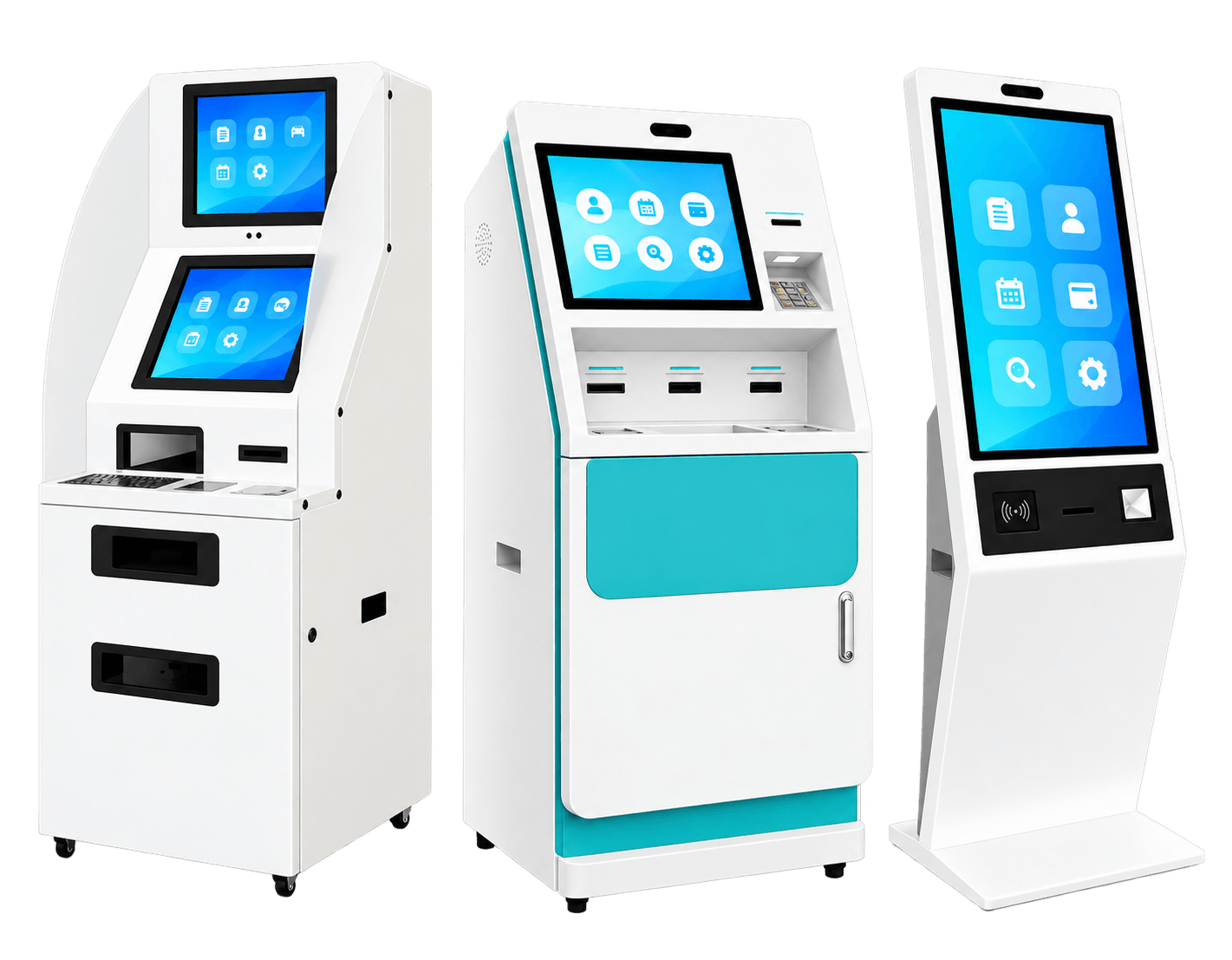
Review advertising, information and self-service configurations around the required workflow.
Explore product options →
Digital Signage Displays
Explore content-playback displays when touch and service peripherals are not the main task.
Explore product options →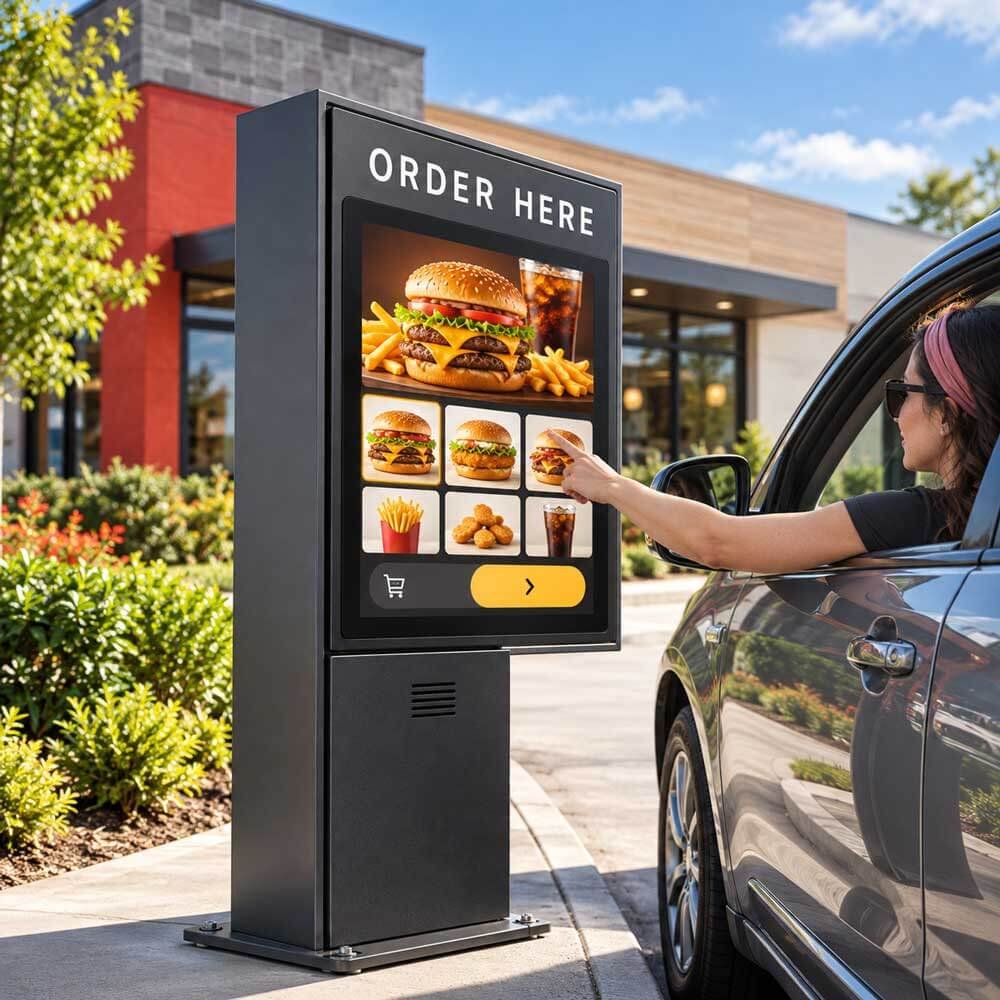
Outdoor Touch Displays
Review outdoor visibility, protection, thermal behavior and touch as a complete system.
Explore product options →Project review
Review Your Floor-Standing Kiosk Requirements
Send your application, installation environment, display size, software, peripheral requirements and quantity. DisplayMan can review a practical kiosk configuration and confirm the supply scope.
Prefer to open the enquiry form here?
Related Guides and Technical References
Floor-Standing Kiosks · PCAP Touch Interfaces · Optical Bonding vs Air Gap
Elo: water droplets and surface acoustic wave touch interference · Samsung: outdoor and window-facing displays
Manufacturer references illustrate technology and environmental distinctions, not specifications for every DisplayMan configuration. Product photos link to the relevant DisplayMan range; approve the actual quoted configuration and test conditions.